Subtitle Edit v5 vs Scribis: Fine-Tuning Subtitles vs. AI Voice Workstation, Which Should You Choose?
Compare Subtitle Edit v5 and Scribis across product positioning, subtitle editing, voice transcription, timeline controls, translation, video processing, privacy, and cost to help creators choose the right workflow.
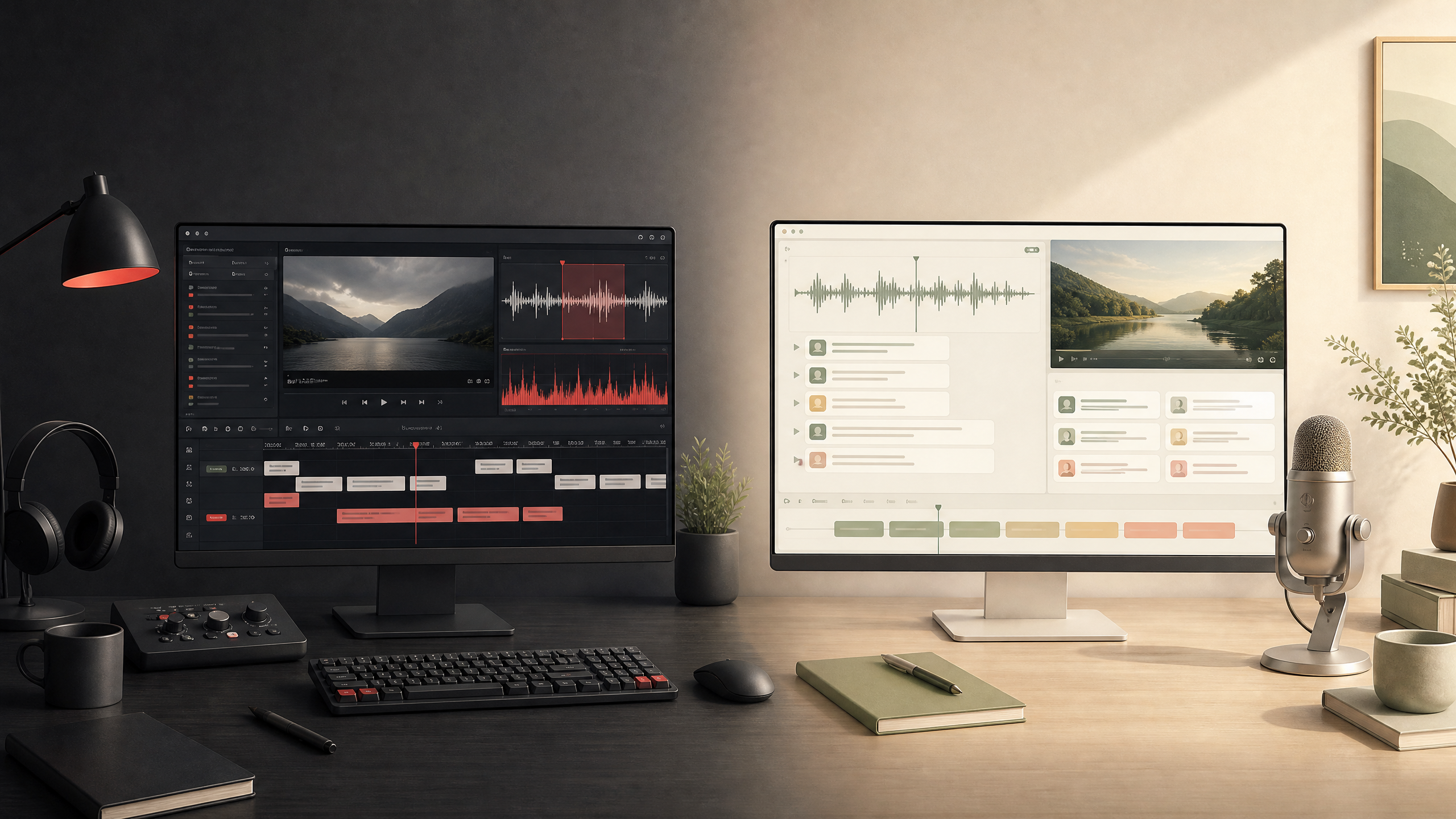
Cover illustration is a conceptual mockup created for this article and does not represent actual software UI screenshots.
When choosing subtitle software, we often face a dilemma: Should we output a rough draft with one click, or do we need frame-by-frame precision on the timeline? If you are handling these tasks, Subtitle Edit v5 and Scribis are likely on your radar.
Although both applications emphasize "Speech, Subtitles, and AI," their underlying philosophies are completely different. Subtitle Edit v5 is a hardcore subtitle editing console centered on post-production control; Scribis is more like a processing pipeline designed to convert raw recordings or video materials into editable transcripts and bilingual subtitles rapidly.
This is not a feature count contest. If your pain point is "how to tune subtitles with maximum accuracy to meet Netflix or broadcast delivery standards," choose Subtitle Edit v5; if you simply want to "turn a one-hour interview into text and a draft quickly," Scribis will save you a lot of effort.
Note: This article is based on public information as of late August 2026. Subtitle Edit references official stable release v5.1.0; Scribis references recent updates (including v1.1.8), documentation, and pricing. Actual recognition accuracy and speed depend on your hardware and media files.
Summary First: Which Stage of the Problem Are You Solving?
In short, Subtitle Edit v5 is a "Subtitle Workbench," while Scribis is a "Content Workstation."
The former lets you scrutinize every timecode, format, and visual pacing; the latter shortens the tedious path of "import video → transcribe → identify speakers → translate → export."
| Comparison Aspect | Subtitle Edit v5 | Scribis |
|---|---|---|
| Product Core | Cross-platform, open-source professional subtitle editing tool. | Integrated video-audio workstation combining transcription, translation, and editing. |
| Best Used When | You already have a draft subtitle file and need to fine-tune timecodes, formatting, and delivery files. | You just received a raw audio or video recording and urgently need text and draft subtitles. |
| Timeline Control | Frame-accurate control using waveforms, spectrograms, and shot change detection. | Dynamic timeline, VAD calibration, and magnetic alignment for rapid draft cleanup. |
| AI & Translation | Supports local llama.cpp, Ollama, and external APIs; features AI review and auto-translation. | AI Assistant, summary, translation, bilingual subtitles, and Voiceover (TTS) built directly into the workflow. |
| Format Support | Monstrous 380+ formats, covering video subtitles and professional NLE exchange files. | Focused on mainstream needs: SRT, VTT, TXT, FCPXML, and subtitled MP4 exports. |
| Supported Platforms | Windows, Linux, macOS (v5 finally added official Mac support). | Native app for macOS (Apple Silicon only) and Windows. |
| Cost | Open-source MIT license, free software (hardware cost applies for local models or APIs). | Free tier / One-time purchase (Local Pro) / Subscription (Cloud Pro+). |
Subtitle Edit v5: The Control Freak's Perfect Operating Table
The biggest highlight of Subtitle Edit v5 is its migration of the UI framework to Avalonia, bringing genuine cross-platform support for Windows, Linux, and macOS. For Mac users who have waited a long time, this feature alone makes upgrading worthwhile.
This software isn't built just for filling in text boxes. It caters to subtitle translators, QC (quality control) specialists, and video post-production editors. When you need to adjust ASS/SSA effects, tweak tracking, split or merge sentences, or run spellchecks, it provides nearly every tool imaginable.
Details, Details, and Details
In Subtitle Edit, waveforms and spectrograms aren't just eye candy. You can precisely mark subtitle start and end points, identify silent intervals, and even snap subtitles to scene cuts (shot changes). For professional editors, the reassurance of "knowing exactly which frame the subtitle will appear" is something automated tools cannot provide.
v5 also brings several practical QC features, such as real-time spellcheck, Netflix error checks, and various batch timecode corrections. Its AI review feature is intentionally restrained—the system presents suggested modifications and reasoning for you to decide whether to apply them, rather than overwriting your carefully arranged formatting automatically.
Intimidating Format Compatibility
If you frequently deal with obscure or legacy subtitle formats, Subtitle Edit v5 is an absolute lifesaver. Official specs list over 380 supported formats. From standard SRT and WebVTT to professional Final Cut Pro XML, DaVinci Resolve EDL, Blu-ray PGS, or MKV containers, it can swallow almost anything and output your desired target format.
However, this versatility comes with a steep learning curve. It feels like an unlocked toolbox packed with all kinds of screwdrivers. You need to know how to configure Whisper models, set up VAD, or connect OpenAI APIs yourself. While the software itself is free, tuning it to your exact workflow requires a time investment.
Scribis: The Shortest Line from Audio to Content
Scribis takes a fundamentally different path. If you receive a one-hour online course video or meeting recording and don't want to open a converter app, then a transcription tool, and finally a video editor, Scribis was created to eliminate that friction.
Positioned as an "Audio-video workspace," its value for creators, researchers, and media teams lies in one-stop efficiency: upload a file, let the system perform speaker diarization, generate transcripts, edit typos and translate directly inside the app, and export subtitled videos.
Ambitions Reflected in Recent Updates
Looking at Scribis's changelog up to August 24, 2026, it is clear the app is aggressively incorporating post-production capabilities.
The latest v1.1.8 release fixed Mac App Store compatibility, while v1.1.7 added practical production features: direct waveform splitting, color-coded speaker identification, on-screen intuitive editing, mixed Chinese-English alignment, and magnetic alignment for adjacent subtitles separated by less than 200 ms. It even supports transparent background subtitle video export in ProRes 4444 Alpha.
These updates demonstrate one clear goal: Scribis aims to be more than a dictation tool—it wants you to complete rough cuts inside the application.
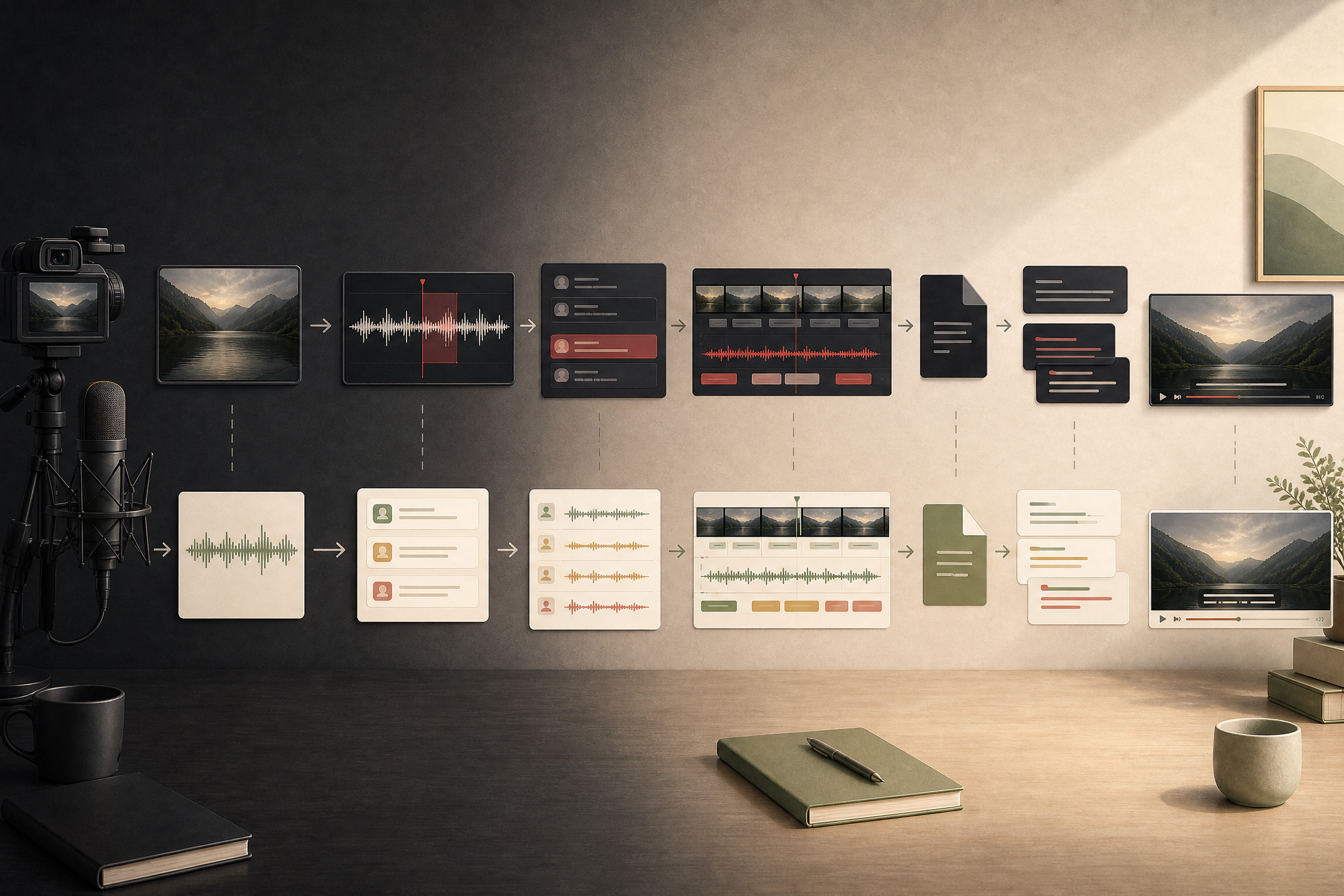
This illustration shows two parallel workflows contrasting "subtitle fine-tuning" and "audio content integration." It is a concept diagram and does not represent actual software interfaces.
Convenience Has Its Trade-Offs
While Scribis offers a user-friendly interface and deep integration, hardware requirements and stability should be evaluated.
As a relatively young product undergoing rapid iteration, running it smoothly locally on Windows recommends at least 4GB GPU VRAM (8GB + CUDA for translation), while the Mac version specifically targets Apple Silicon chips. In short, to save on cloud API costs, your local hardware must be capable.
Privacy and Data Flow: Know Where Your Data Goes
When handling confidential interviews or unreleased footage, local processing is a major consideration, but the two applications handle this differently.
Subtitle Edit depends entirely on your setup. If you run local Whisper models or llama.cpp, data never leaves your computer; if you configure external API keys, data is transmitted accordingly.
Scribis maintains a clear policy: On-Device mode and Cloud Mode. In On-Device mode, audio files remain strictly on your local hardware. If you use cloud credits or Bring Your Own Key (BYOK), data is sent to the respective cloud servers. In practice, it's wise to check the status indicator in the bottom right corner before starting a project.
Cost: Balancing Time, Money, and Setup Effort
Subtitle Edit's main application is open-source and free (MIT License). You can download the latest version directly from GitHub. However, keep in mind that while software is free, running high-performance models requires capable hardware, and connecting third-party OpenAI APIs incurs usage costs.
Scribis adopts a structured commercial model. The free tier has file duration limits (30 minutes per upload). For higher workloads, options include $2.99/month, $49.99 lifetime (Local Pro).
If you prefer an out-of-the-box experience, Scribis's one-time purchase offers a reasonable investment. If you enjoy total control over every underlying detail, Subtitle Edit requires no credit card.
Why Not Both?
In practice, you don't need to treat these two tools as mutually exclusive. The recommended workflow is a hybrid approach.
Use Scribis first for the heavy lifting: feed raw media in, let it generate transcripts, perform speaker diarization, and produce initial translations. Once you have this timecoded rough draft, pass it into Subtitle Edit v5 for final polishing if you need frame-level timing adjustments, complex styling, or export to rare broadcast formats.
Scribis handles the sprint; Subtitle Edit handles the finish line.
Final advice: Don't choose based on spec sheets alone. Grab a noisy 5-minute clip with heavy accents, run it through both applications, and pick the tool that saves you the most clicks and headaches.
References
- Subtitle Edit GitHub repository
- Subtitle Edit v5.1.0 release
- What’s New in Subtitle Edit 5
- Subtitle Edit supported formats
- Subtitle Edit Speech to Text
- Subtitle Edit Audio Visualizer
- Scribis Official Homepage
- Scribis Features
- Scribis Chapter 1: Introduction & Quickstart
- Scribis Changelog
- Scribis Pricing
- Scribis Privacy Policy
- Scribis Terms of Service