Supercharge Scribis Speech-to-Text with ElevenLabs Scribe v2: API Setup and Usage Guide
Learn how to set up and use ElevenLabs Scribe v2 batch speech-to-text in Scribis, including API key creation, scope permissions, privacy options, and credit estimates.
If you regularly use Scribis to transcribe interviews, courses, podcasts, or video content, you can leverage ElevenLabs' Scribe v2 to unlock robust cloud speech-to-text capabilities. This guide walks you through setting up Scribis from creating an API key to selecting Scribe v2, managing privacy settings, and estimating credit consumption.
This article focuses on the Scribe v2 batch transcription model. That means you prepare audio or video files first and submit them to ElevenLabs for transcription; it is not the streaming scribe_v2_realtime model that requires persistent WebSocket connections.
When Should You Use Scribe v2?
Scribe v2 is designed for pre-recorded audio files, such as interview recordings, podcasts, online courses, meeting recordings, and YouTube videos. The model supports over 90 languages and generates transcripts, timestamps, speaker diarization, audio event tags, and keyterm prompting to assist with specialized terminology.
If you need live subtitles while speaking, you should use ElevenLabs' Scribe v2 Realtime product instead. The Scribis configuration workflow in this guide uses the scribe_v2 batch API.
What Do You Need Before Starting?
Before getting started, please prepare the following items:
| Item | Description |
|---|---|
| ElevenLabs Account | Used to generate API keys and manage credits |
| Scribis | Download the macOS or Windows version from the Official Scribis Website |
| Audio or Video File | Used to test Scribe v2 transcription results |
| API Key | Allows Scribis to call the ElevenLabs Speech to Text API |
API keys function like account passwords. Never paste them into public articles, GitHub repositories, chat groups, or screen recordings. If a key is leaked, immediately revoke or delete it in the ElevenLabs dashboard and create a new key.
1. Creating an API Key in ElevenLabs
1. Open the API Keys Page in ElevenLabs
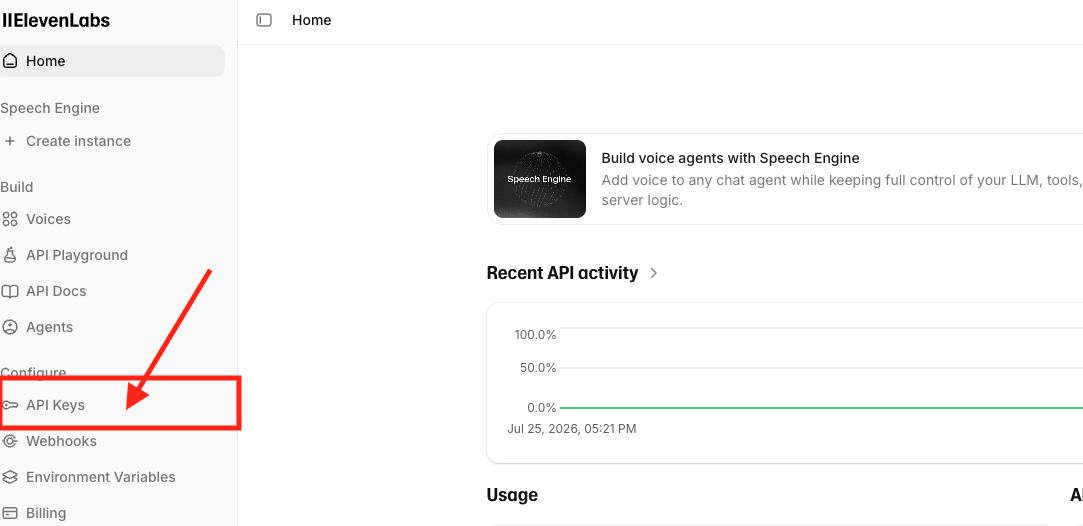
Log in to your account at ElevenLabs. After logging in, select API Keys on the left menu to access the key management page. Depending on the interface version, API Keys may be located under Configure or Developers. If you don't see it on the home page, go directly to the Developers Settings page.
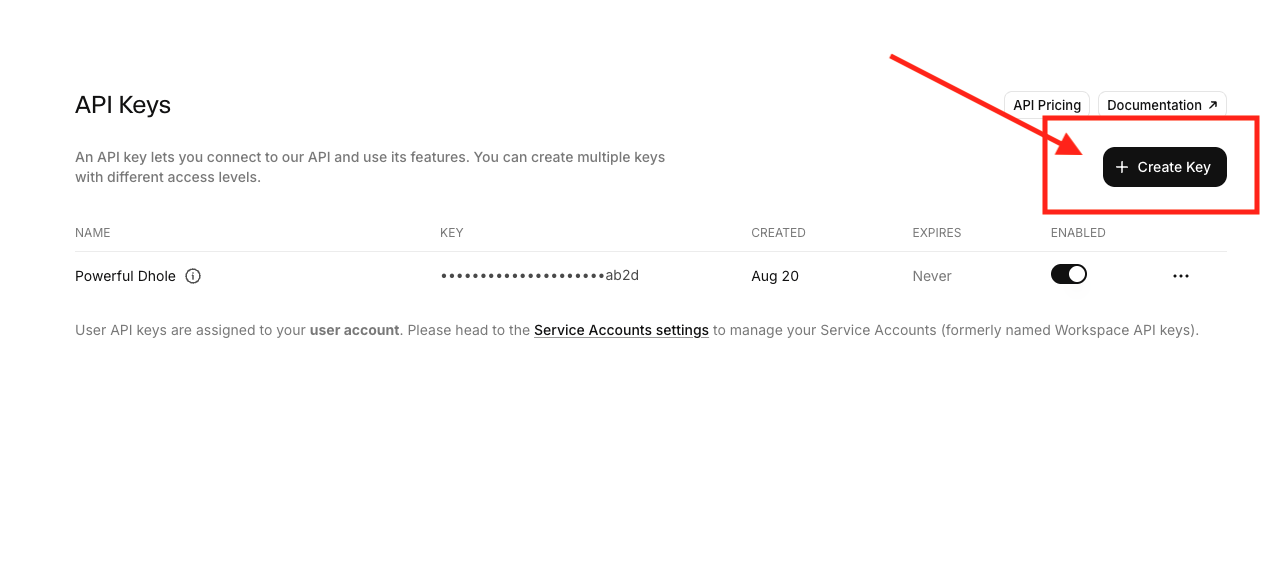
Once on the API Keys page, click Create Key in the top right corner.
2. Configure Key Name and Scope Permissions
Name your key Scribis-Scribe-v2 so you can easily identify its purpose later. If an expiration date option is provided, select a reasonable timeframe; choose Never only if long-term usage is strictly required.
Next, configure the endpoint scope permissions for the API key. Since Scribis utilizes ElevenLabs speech-to-text services, the essential permission to enable is Speech to Text → Access.
| API Endpoint | Recommended Setting |
|---|---|
| Speech to Text | Access (Required for Scribe v2) |
| Text to Speech | No Access (Unless you also generate speech with ElevenLabs) |
| Speech to Speech | No Access |
| Sound Effects | No Access |
| Audio Isolation | No Access |
| Music Generation | No Access |
| Image & Video Generation | No Access |
Please enable Speech to Text; otherwise, Scribis may not be able to call /v1/speech-to-text.
If Usage Limits are supported on your interface, you can set a credit ceiling for this key to reduce risk in case of accidental exposure. Once configured, click Create Key.
3. Copy Your API Key
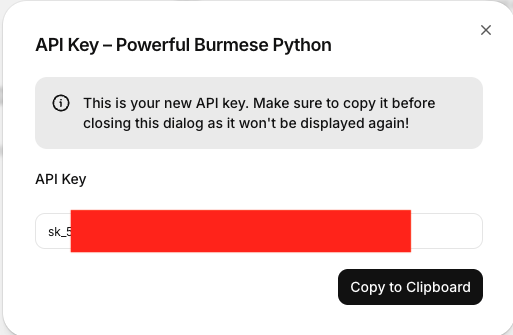
Upon creation, ElevenLabs displays the full API key only once in this window. Click the copy button immediately and store the key in a password manager or secure location.
Never commit actual API keys into tutorial articles, code repositories, or public screenshots.
2. Opting Out of Data Usage for Model Improvement
If you prefer that your data is not used to improve ElevenLabs models, check your account data settings.
Click your profile icon in the top right corner of ElevenLabs, navigate to Terms and privacy → Data use, and locate Improve the models for everyone. Turn it off and click Update your choice to save.
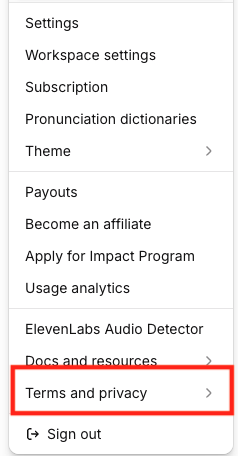
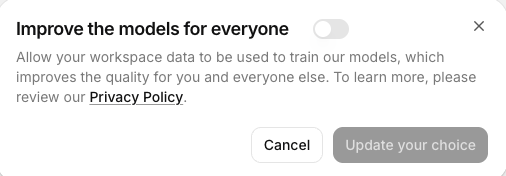
According to official ElevenLabs documentation, opting out ensures newly submitted data will not be used for model training. This option is independent of free or paid subscription tiers; even free API tier users can choose whether to share new data for model improvement.
However, turning off model improvement is not equivalent to Zero Retention. Standard API requests may still be temporarily retained per service terms for service delivery, debugging, security, abuse detection, or regulatory compliance. Zero Retention Mode is a separate feature available primarily to Enterprise customers.
3. Configuring ElevenLabs API in Scribis
1. Open Scribis API Settings
Launch Scribis, navigate to Settings → API, locate the ElevenLabs API Key field, paste your API key, and save according to the prompt in your version of Scribis.
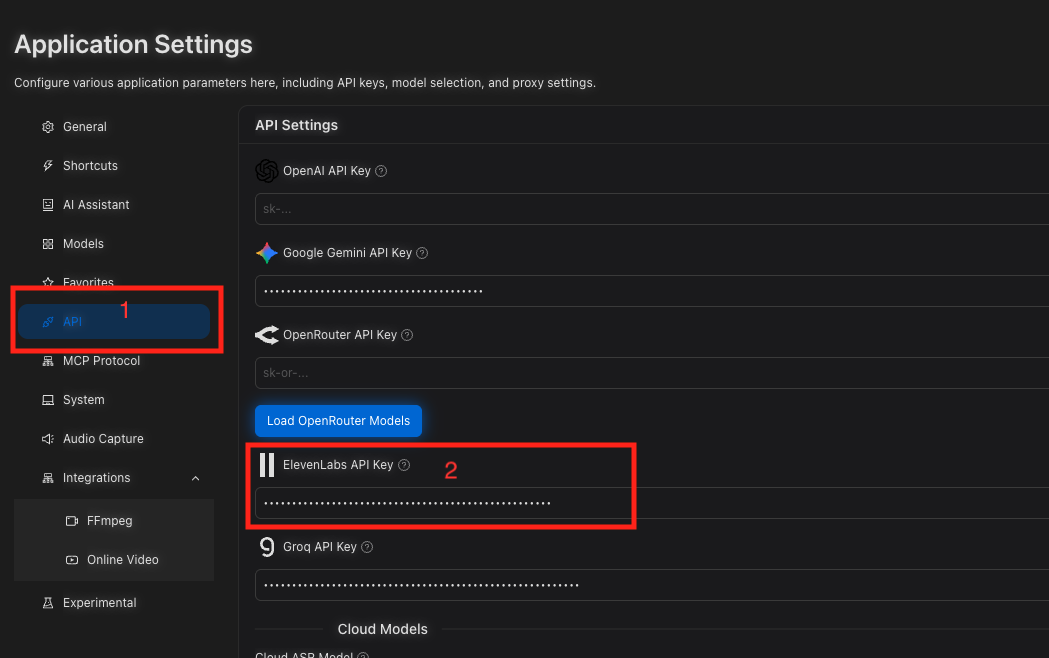
Ensure you paste a valid ElevenLabs API key rather than keys for OpenAI, Google Gemini, OpenRouter, or other services.
2. Disable Local ASR and Select Cloud ASR
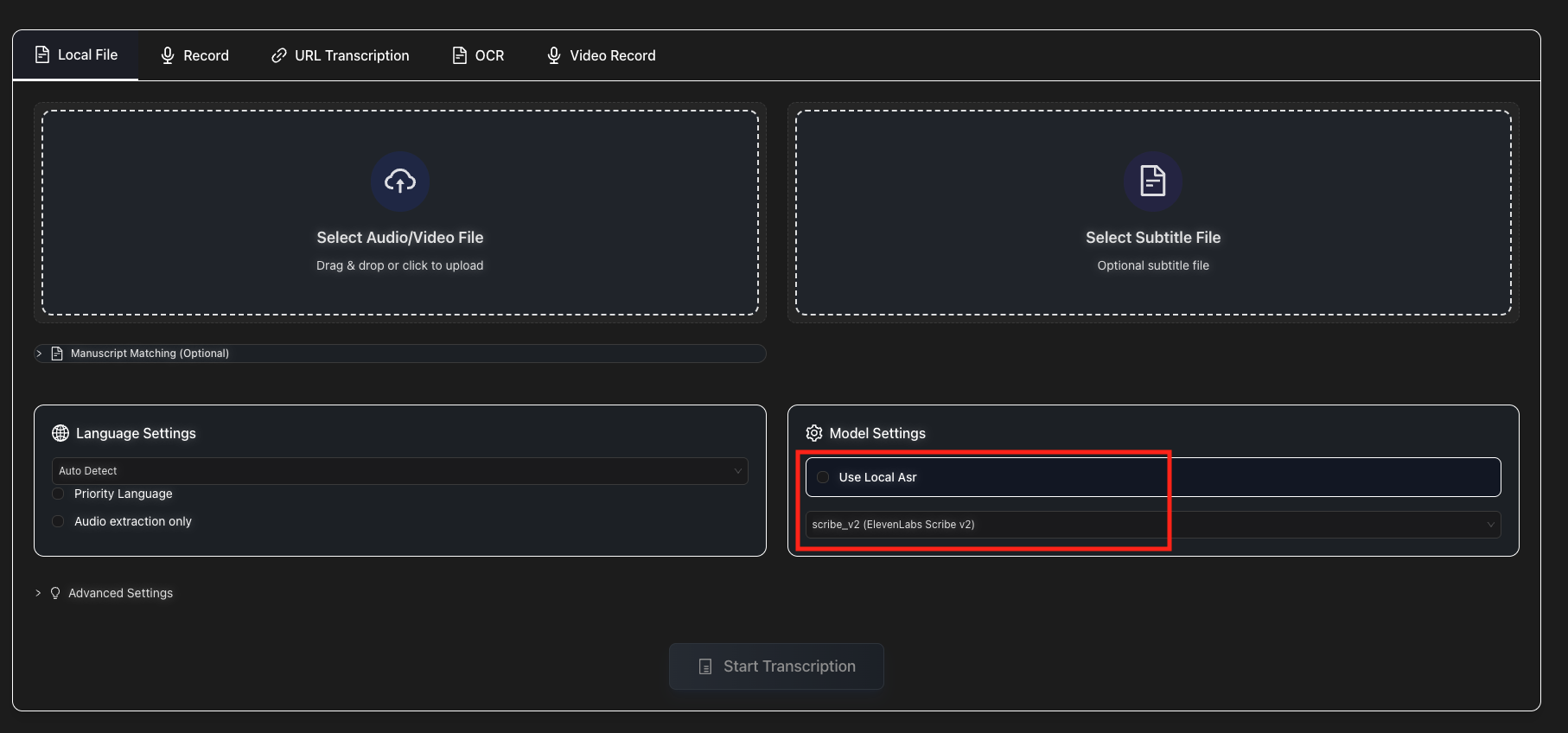
Return to the Scribis transcription page and ensure Use Local ASR is unchecked under Model Settings.
If Local ASR is enabled, audio will be processed by local ASR models on your computer rather than ElevenLabs Scribe v2. Switch to Cloud ASR mode to use your configured ElevenLabs API key.
Look for the following entry in the model menu:
scribe_v2 (ElevenLabs Scribe v2)
Select scribe_v2, not scribe_v2_realtime. The former is the batch file transcription model used in this guide, while the latter is a streaming real-time model.
3. Favorite Scribe v2
Some Scribis versions organize cloud ASR models under a Cloud ASR Model menu. Expand the dropdown, select scribe_v2 (ElevenLabs Scribe v2), and click the star or favorite icon if available for fast access in future tasks.
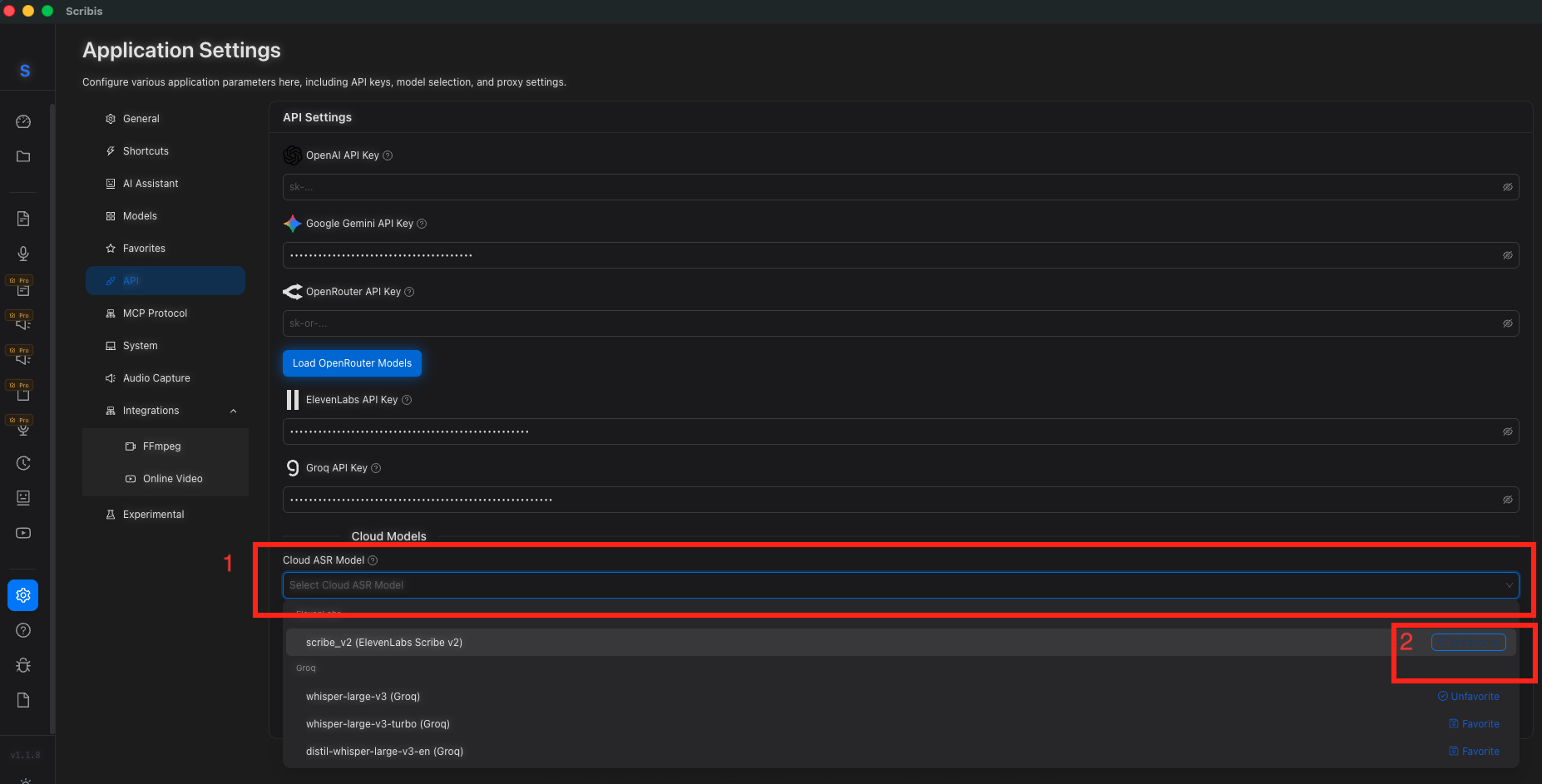
If Scribe v2 does not appear, check in order: whether the API key is saved, whether the key has Speech to Text scope access, whether Scribis is still in Local ASR mode, and whether Scribis needs a restart.
4. Transcribing Audio with Scribe v2
In Scribis, choose Local File on the transcription page and upload your target audio or video file. Scribis also supports loading subtitle files and transcript alignment depending on your workflow.
Under Language Settings, you can keep Auto Detect to let the model identify the spoken language automatically, or specify a primary language if you know the recording uses a single language. For bilingual or multilingual audio, Auto Detect is recommended.
Once model selection is set to scribe_v2, click Start Transcription. Scribis sends the entire file to ElevenLabs and awaits the returned batch transcript.
5. Using ASR Dictionary and Keyterms
If your audio contains specialized product names, personal names, brand names, or technical jargon, providing keyword hints can improve recognition accuracy. However, for general transcription, keeping the ASR Dictionary blank in Scribis is recommended.
The keyterms parameter in ElevenLabs API defaults to an empty array []. Keyterm hints only affect Scribe v2 prompting when Scribis maps ASR Dictionary entries to keyterms in its request.
When keyterms are submitted, official ElevenLabs API documentation indicates base transcription costs increase by approximately 20%. Therefore, include only essential proper nouns rather than pasting entire transcripts into the dictionary.
6. Scribe v2 Credit Calculations
When testing scribe_v2 batch transcription in Scribis, empirical tests show approximately 80 credits consumed for a 1-minute audio clip. This equates to roughly 4,800 credits per hour, meaning 10,000 credits can process about 125 minutes of audio.
| Audio Duration | Empirical Estimate |
|---|---|
| ~1 minute | ~80 credits |
| ~10 minutes | ~800 credits |
| ~60 minutes | ~4,800 credits |
| 10,000 credits | ~125 minutes |
These numbers serve as a practical estimation benchmark, but actual deductions vary based on exact audio duration and request parameters. ElevenLabs bills based on submitted audio duration rather than transcript word count. For example, a clip listed as 1 minute that actually runs for 62 or 65 seconds will consume more credits than a exact 60-second clip.
Note also that ElevenLabs Creative Web UI and ElevenAPI operate under different billing models; figures on web UI pricing pages cannot be applied directly to API usage. Since Scribis calls API endpoints, checking Usage Analytics in ElevenLabs provides the most accurate account usage data.
Features That Increase Credit Costs
The following optional features add surcharges on top of base transcription costs:
| Feature | Surcharge Listed in Official Docs |
|---|---|
keyterms |
Approx. +20% |
entity_detection or entity_redaction |
Approx. +30% |
detect_speaker_roles |
Approx. +10% |
| Multichannel Transcription | Each channel billed independently for full duration |
For standard verbatim transcripts, use mono audio without keyterms, entity detection, or speaker role options enabled.
7. Verifying Actual Credit Consumption
To verify your credit consumption rate, navigate to Developers → Usage or Usage Analytics in the ElevenLabs dashboard to inspect API request logs. Test with files of known lengths (e.g., 30s, 60s, 120s) and note the following details:
| Field to Verify | Description |
|---|---|
| Model ID | scribe_v2, not scribe_v2_realtime |
| Access Source | Scribis Cloud ASR |
| Audio Duration | Exact audio duration in seconds |
keyterms |
Should be empty array [] when unused |
| Entity Features | Confirms whether entity_detection or entity_redaction was enabled |
| Speaker Roles | Confirms whether detect_speaker_roles was enabled |
| Channels | Confirms whether multichannel mode was used |
| Credits | Actual deducted credits for that request |
To test ElevenLabs batch Scribe v2 API independently outside Scribis, execute the following cURL command (passing your key via environment variables):
export ELEVENLABS_API_KEY='YOUR_API_KEY'

curl -X POST 'https://api.elevenlabs.io/v1/speech-to-text' \
  -H "xi-api-key: ${ELEVENLABS_API_KEY}" \
  -F '[email protected]' \
  -F 'model_id=scribe_v2'
This request executes a baseline mono batch transcription without adding keyterms, entity detection, speaker roles, or multichannel options. The official ElevenLabs API endpoint is POST /v1/speech-to-text with model_id=scribe_v2.
8. Frequently Asked Questions
Why doesn't Scribe v2 appear in Scribis?
The most common reasons are that Local ASR remains enabled, the API key is unsaved, or the key lacks Speech to Text permissions. Check all three settings and restart Scribis.
Why does a 1-minute file sometimes cost more or less than 67 credits?
A player's 1-minute indicator might not equal exactly 60 seconds. The file duration may actually be slightly longer, or options like keyterms, entity detection, speaker roles, or multichannel were enabled. Refer to ElevenLabs Usage Analytics request logs for exact numbers.
Why do I need Speech to Text permission instead of Text to Speech?
Because Scribe v2 is a Speech to Text model. Text to Speech generates voice audio from text, which is the opposite of speech transcription. Granting only Text to Speech permissions will not allow Scribis to call Scribe v2.
Is my data used for model training when using free API credits?
Free credit allowance is separate from privacy settings. If you disable Improve the models for everyone under Terms and privacy → Data use in ElevenLabs, official docs state that newly submitted data will not be used for model training.
However, this does not grant Zero Retention. For highly sensitive content, anonymize data prior to submission or ensure your account uses enterprise data retention plans.
Conclusion
Integrating ElevenLabs Scribe v2 into Scribis via an API key is straightforward: generate a dedicated key with Speech to Text scope, paste it into Scribis Settings → API, and select scribe_v2 in Cloud ASR.
Empirical testing shows 1 minute of audio consumes roughly 80 credits, with 10,000 credits covering about 125 minutes. Because actual credit usage depends on exact duration and active features, periodically monitor Usage Analytics and maintain scoped API keys to protect credentials and manage costs effectively.