Still Downloading YouTube Videos Before AI Analysis? Start Directly from URLs with Scribis
Still using yt-dlp to download YouTube videos, running Whisper, and extracting transcripts before feeding them to AI? Scribis works directly from YouTube URLs, integrating subtitles, AI Chat, Vision, Mind Maps, Translation, and TTS.
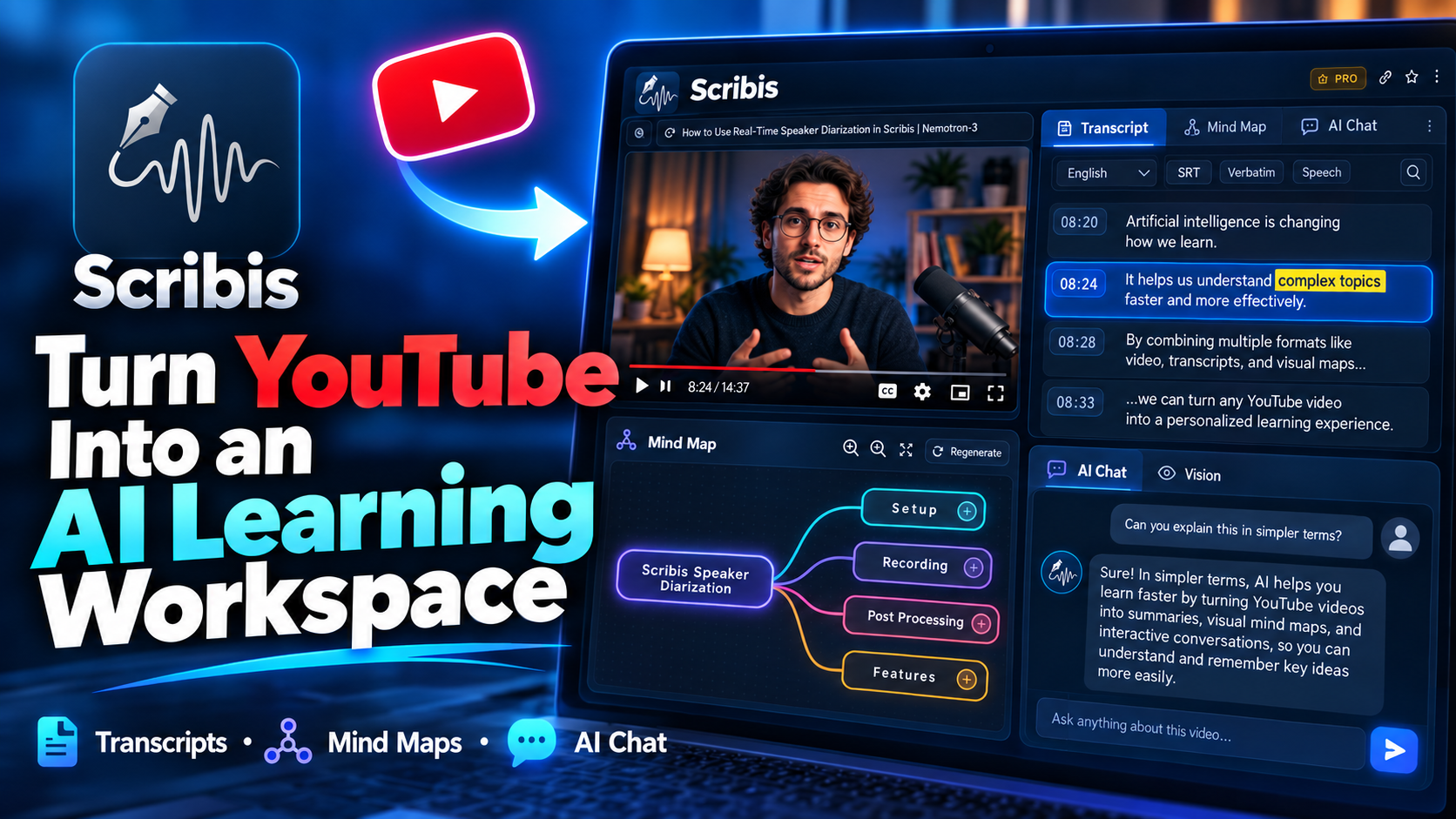
When you want to analyze a YouTube video with AI, is your very first step still downloading the video file?
Many AI video workflows today still look like this:
YouTube URL
↓
yt-dlp
↓
Download hundreds of MBs or GBs of video
↓
Extract Audio
↓
Whisper / ASR
↓
Generate Transcript
↓
Clean up Transcript
↓
Paste into LLM
↓
Finally start analyzing
This method certainly works.
If your goal is to archive raw video assets, build dataset pipelines, or perform full video editing, downloading the source video still serves a purpose.
But if what you actually want to do is simply:
- Understand what the video is about
- Quickly get subtitles and transcripts
- Summarize key points
- Ask AI questions about the video content
- Comprehend slides, charts, or code snippets
- Organize long videos into a Mind Map
- Translate foreign-language videos
- Practice Shadowing with word-level captions
- Bookmark essential video moments
Then you don't necessarily need to fetch a massive MP4 file first.
With Scribis, you can start directly from a YouTube URL.
YouTube URL
↓
Scribis
├── Video
├── Transcript
├── Word-level Highlight
├── AI Chat
├── Vision
├── Knowledge Mind Map
├── Translation
├── TTS
├── Favorites
└── Watch History
Paste the URL and start learning right away.
Why Download the Entire Video First?
Traditional AI video analysis pipelines usually treat "the video file" as the entry point for all operations.
So the first step is almost always:
yt-dlp ...
After downloading finishes, you might still need to execute:
Video
↓
Audio Extraction
↓
Whisper
↓
Transcript
↓
LLM
If the video is only a couple of minutes long, this might not seem like a big hassle.
But when the video turns into:
- 30 minutes
- 1 hour
- 2 hours
- 4K resolution
- High bitrate
You might just want to ask AI a single question, yet you are forced to wait for hundreds of megabytes—or even gigabytes—of video to finish downloading.
Then you still have to extract the audio, run ASR, wait for transcription, and copy the results into AI.
The issue isn't necessarily that this workflow is difficult.
The real problem is:
It generates a lot of unnecessary intermediate overhead.
You probably just wanted to know:
What is this video about?
Yet you had to prepare:
- A huge video file
- An extracted audio file
- A full ASR run
- A raw transcript file
- A custom AI prompt setup
Your actual goal was usually not:
I need a
video.mp4file on my hard drive.
Rather, it was:
I want to understand this video.
These two goals are fundamentally different.
Scribis: Paste the YouTube URL Directly
In Scribis, simply paste the YouTube link and click Load Video.
The video appears directly in the YouTube Learning Workspace.
From there, you can immediately work with:
- Subtitles
- Transcripts
- AI Chat
- Vision
- Mind Map
- Translation
- TTS
- Favorites
- Watch History
No need to manually execute a lengthy chain:
Download
→ Extract Audio
→ Transcribe
→ Copy
→ Paste
→ Analyze
For the user, the starting point is no longer a file—it's a URL.
Have YouTube Subtitles? Use Them Directly
If a video already provides YouTube subtitles, Scribis can extract the caption content directly and construct a complete Transcript Timeline.
Subtitles appear neatly alongside the video.
As the video plays, the corresponding captions update in sync.
You can:
- Browse the full transcript
- Click any caption line to jump to that timestamp
- Search for specific keywords
- Track current playback position
- Translate caption text
- Send transcript context to AI for analysis
If a video already has accurate subtitles, you don't need to:
Re-download audio
↓
Run Whisper again
↓
Re-generate identical text
You can leverage existing captions to start learning immediately.
Word-Level Highlight: Beyond Reading Captions
When captions include precise word-level timestamps, Scribis highlights the exact word being spoken in real time.
For example:
Artificial intelligence is changing how we learn.
                        ↑
                  current word
As the video speaks, the text highlight follows along smoothly.
This is exceptionally useful for language learning.
Practice Shadowing with YouTube
Shadowing is a popular language learning technique where you listen to a native speaker and repeat after them as closely as possible in real time.
The main drawback of standard subtitles is:
They tell you what the whole sentence says, but not where the voice currently is.
Through word-level highlighting, you can easily observe:
- Word pronunciation
- Word stress
- Linking sounds
- Speaking pace
- Pauses
- Sentence cadence
- Natural speech flow
Compared to simply reading static full-line subtitles, this is far more effective for shadowing and listening practice.
No Subtitles? Switch to Gemini Video API
Of course, not every YouTube video comes with captions.
Some videos have:
- No CC
- No auto-captions
- Incomplete subtitles
- Low-quality auto-generated captions
In these cases, you can switch to the Gemini Video API.
By leveraging Google Gemini's multimodal video understanding capabilities, Scribis can analyze video content natively.
Even if a video lacks native subtitles, your workflow doesn't need to revert to:
Download Video
↓
Extract Audio
↓
Whisper
↓
Transcript
↓
AI
You can remain inside the same Scribis Workspace and continue working with the video.
AI Shouldn't Just Know "What Was Said"
Analyzing video solely through ASR presents a clear limitation.
ASR can only inform the AI:
What the speaker said.
However, a vast amount of critical information in YouTube videos is never spoken out loud.
Imagine a coding tutorial where the instructor says:
"Next, just change this line to this."
If the AI only receives a speech transcript, it has no idea what "this" actually refers to.
Because the essential details only appeared on screen:
Before

const enabled = false

↓

After

const enabled = true
The speaker might never have read that code snippet out loud.
The same problem occurs with:
- PowerPoint / Keynote slides
- Diagrams and charts
- UI interactions
- Terminal windows
- IDE code snippets
- Webpages
- Flowcharts
- Data tables
- Software demonstrations
- Error messages
That's why Scribis doesn't just handle transcripts—it also processes video frames.
Using Vision to Understand On-Screen Content
Scribis's Vision feature performs visual analysis on targeted video time ranges.
For instance, you can ask:
What is shown on screen at 00:33?
Or:
Summarize the slide shown in this section.
Or:
Explain the code being demonstrated here.
Or even:
What changed between these two steps?
The AI utilizes visual frames from the specified timestamp interval to comprehend the context.
This capability is nearly impossible to achieve through a simple pipeline like:
YouTube
↓
Whisper
↓
LLM
Whisper tells the AI:
What the speaker said.
Vision complements it by showing:
What the speaker displayed.
Combining both gives AI true comprehension of the video.
Turn Long Videos directly into a Knowledge Mind Map
For a two-minute clip, reading through a transcript is easy.
But for longer videos:
30 minutes
60 minutes
90 minutes
120 minutes
The transcript becomes overwhelming to skim.
Even if AI generates a text summary, getting a quick mental picture of the underlying structure can still be difficult:
What is the overall knowledge hierarchy of this video?
This is where the Knowledge Mind Map comes in.
Scribis organizes the core concepts of the video into a clear, hierarchical layout.
For example, a video covering Speaker Diarization might be structured as:
Scribis Speaker Diarization
├── Setup
├── Recording
├── Post Processing
└── Features
Within the Mind Map, you can:
- Zoom and pan
- Expand nodes
- Collapse branches
- Explore knowledge paths
- Quickly grasp long-video structures
A Mind Map is not just about making summaries look nice.
Its real value lies in:
Grasping the high-level knowledge landscape first, then deciding which sections warrant deeper investigation.
Ask AI Directly Instead of Copying Transcripts
Traditional AI video workflows often become tedious:
Generate Transcript
↓
Select All
↓
Copy
↓
Open ChatGPT / LLM
↓
Paste
↓
Type Prompt
If the transcript is too long, you might run into:
- Context window limits
- Chunking requirements
- Uncertainty about which section to paste
- Disconnect between timestamps and text
- Inability to ask about visual elements
In Scribis, you use AI Chat directly inside the workspace.
You can ask:
Summarize this video.
Or:
What are the key takeaways?
Or:
Explain this section in simpler terms.
Or even:
Create an FAQ based on this video.
The video content serves as the active context for the AI Workspace.
The transcript is no longer just a static output file—it becomes a dynamic knowledge source for AI interaction.
Transcript + Vision: Helping AI Understand Both Audio and Visuals
This is a core concept behind the Scribis YouTube Workspace.
A video inherently carries two streams of information:
Audio / Speech
+
Visual Information
Speech reveals:
What was spoken.
Visuals reveal:
What was demonstrated on screen.
If AI only receives the transcript, it receives only half of the video's information.
Depending on your workflow needs, you can choose:
Transcript
→ Best for speech, interviews, lectures, podcasts

Vision
→ Best for slides, UI demos, code, charts, diagrams

Transcript + Vision
→ Comprehensive video understanding
This is especially vital for technical tutorials where crucial information is demonstrated visually rather than spoken aloud.
Watching Foreign Content? Turn On Bilingual Translation
YouTube is a massive global learning repository containing:
- Tech lectures and keynotes
- Developer tutorials
- Foreign podcasts
- Academic open courses
- Interviews and documentaries
However, language barriers can hinder comprehension. Even if you understand 70% of spoken foreign audio, missing the remaining 30% can distort key concepts.
Scribis can translate original captions into your target language for a side-by-side bilingual display:
Original
Translation
This allows you to view the video while comparing:
- Original text
- Translated text
- Technical terms
- Sentence structures
- Nuanced meanings
For technical content, keeping the original terminology alongside the translation prevents misinterpretation caused by over-translation.
Don't Just Read Translations—Listen directly
Scribis integrates Text-to-Speech (TTS) engine options, including:
- Apple Speech
- Kokoro
- Qwen 3 TTS
This enables full audio readout of translated caption text.
When TTS playback begins, original video audio can automatically pause.
This creates a seamless language-learning loop:
Listen to original audio
↓
Read original captions
↓
Read translation
↓
Listen to translated TTS
↓
Replay original audio
Eliminating the constant context-switching between:
YouTube
↔
Translation tools
↔
External TTS
↔
AI Chat
Turn Any Video into Interactive Learning Material
Traditional YouTube interaction is simple:
Play
Pause
Seek
Inside an AI Workspace, video consumption transforms into:
Watch
↓
Read
↓
Search
↓
Ask
↓
Translate
↓
Listen
↓
Explore
↓
Review
You are no longer passively watching a video—you are interacting with an active knowledge base.
Found Important Content? Save It to Favorites
In a 60-minute video, only a few key segments might be worth revisiting later.
For example:
Important Concept
Code Example
Vocabulary
Key Quote
Review Later
You can save these moments directly into Favorites and group them into custom collections.
When you want to review later, you won't need to:
- Reopen the full video
- Drag the scrubber back and forth
- Guess where the crucial segment was
- Replay multiple times to find the timestamp
Simply return directly to your saved Favorites.
Watch History Keeps Your Learning Going
If you use YouTube daily for study and research, tracking progress becomes important.
Standard browser history tells you:
You opened this URL.
For active learning, what matters is:
How far did I get?
Which videos are unfinished?
What topics did I recently research?
Which video should I resume today?
Scribis Watch History keeps track of your viewing progress and learning context, turning YouTube into a structured workspace rather than a media player.
Traditional Workflow vs. Scribis
Comparing the two approaches highlights the contrast clearly:
Traditional Approach
YouTube URL
↓
yt-dlp
↓
Download Video
↓
Extract Audio
↓
Whisper / ASR
↓
Transcript
↓
Copy Transcript
↓
Open LLM
↓
Paste
↓
Prompt
↓
Analyze
To include visual understanding, you must additionally:
Extract Frames
↓
Vision Model
↓
Collate Output
To add translation and speech:
Transcript
↓
Translation
↓
External TTS
The workflow grows increasingly fragmented.
Scribis Approach
YouTube URL
↓
Scribis
├── Video
├── Transcript
├── Word Highlight
├── AI Chat
├── Vision
├── Knowledge Mind Map
├── Translation
├── TTS
├── Favorites
└── Watch History
The core difference is simple:
You don't need to turn a video into a local file before you can start understanding it.
When Should You Still Download Videos?
This doesn't mean tools like yt-dlp or offline video downloads are obsolete.
If your goals include:
- Full video editing and post-production
- Offline archiving
- Dataset creation
- Frame-by-frame computer vision training
- Local video re-encoding
- Audio mixing and mastering
- Bulk batch processing
Then downloading raw video files remains the right choice.
Scribis is not meant to say:
"Never download a video file again."
Rather, it asks:
If your goal is simply to understand, search, learn from, or question a video, do you really need to download the full file first?
In most learning and productivity cases, the answer is no.
Video Is Not a File. It's Knowledge.
Traditional AI video workflows treat video as a file:
YouTube
↓
Download
↓
File
↓
Process
↓
AI
Scribis treats video as a knowledge source:
YouTube
↓
Knowledge Source
↓
Ask
Search
Translate
Summarize
Explore
Listen
Learn
This subtle shift in perspective makes a significant difference in speed and convenience.
You rarely need more gigabytes of MP4 files taking up disk space.
What you actually need is:
Faster access to the knowledge contained inside the video.
So next time you're about to run:
yt-dlp ...
Ask yourself:
Do I truly need the video file on my drive?
Or:
Do I just want to know what this video is about?
If it's the latter, start directly from the URL.
Paste the URL. Start learning.