What'Sub vs Scribis: Two Subtitle Workflows, Which One Should You Choose?
A comparison between What'Sub web subtitle tool and Scribis desktop AI audio/video workstation—covering transcription, translation, styling, hardware requirements, and privacy security to help you find the right subtitle workflow.
Getting a speech-to-text transcript is often just the beginning of the struggle. Are sentence breaks natural? Is the timeline easy to adjust? Can you seamlessly export to Final Cut Pro or Premiere? These details are the real time-eaters for video editors.
There are many automatic transcription tools on the market. Today, we look at two software options with completely different approaches: What'Sub and Scribis.
What'Sub takes a minimalist route, running right in your browser with the goal of "finishing subtitles as fast as possible." Scribis, on the other hand, is a heavy-duty desktop workstation where transcription is just the starting point, followed by translation, dubbing, and AI summaries.
This article isn't a crude scoring competition. We will look at actual editing and post-production workflows to see which problems each tool solves best as of August 24, 2026. (Of course, software updates quickly, so please check official websites for the latest features.)
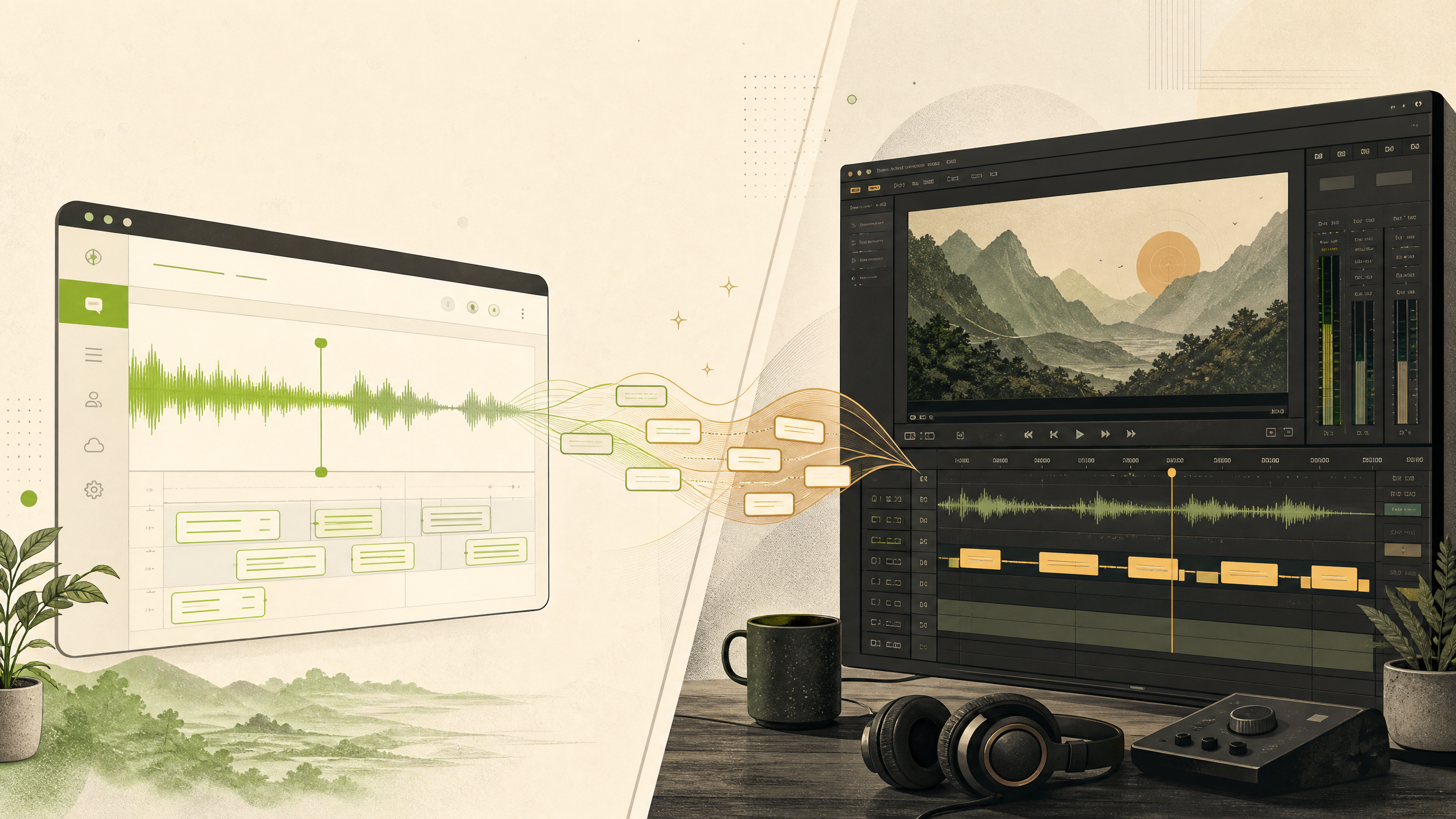
The Quick Verdict: Choose What'Sub for Speed, Choose Scribis for In-Depth Processing
If you have a video that needs to be published tonight and you need subtitles and styling fixed immediately, choose What'Sub. No installation needed—drag it into your browser, fix typos, pick a nice font and social safe zone frame, export, and you're done.
However, if your material is a two-hour meeting or a tutorial that requires multi-language dubbing, Scribis will be more convenient. It requires downloading and installing, and demands better computer hardware, but in return gives you a complete suite of local media processing capabilities.
Core Positioning of Both Tools
| Comparison Aspect | What'Sub | Scribis |
|---|---|---|
| Product Form | Browser subtitle tool focused on listening, segmenting, timeline & visual presentation | macOS / Windows AI voice & media workstation |
| Best First Task | Quickly format video transcripts into ready-to-publish subtitles | Extend from transcription to translation, dubbing, editing & content organization |
| Entry Point | No installation required; use in any modern browser | Requires app download; supports macOS (Apple Silicon only) & Windows |
| Transcription Method | Video stays local; extracts audio only for cloud recognition | Supports local ASR models and cloud API connections (BYOK) |
| Editing Focus | Auto segmentation, timeline, subtitle styling, social safe zones | Waveforms, speaker diarization, OCR, AI word segmentation & text-based editing |
| Export Formats | MP4, SRT, VTT, transcripts, FCPXML, transparent MOV subtitles | Subtitles/text (SRT, VTT, TXT, MD), videos & transparent subtitles |
| Advanced Features | Dynamic subtitles, style presets, hero wall, custom font import | Translation, TTS dubbing, key takeaways, YouTube assistant, API integrations |
| Pricing Info | Monthly/annual plans & single add-ons | Free $0 Local Pro: US$2.99/mo or US$49.99 lifetime buy-out |
What'Sub: The Fast-Charging Station in Your Browser
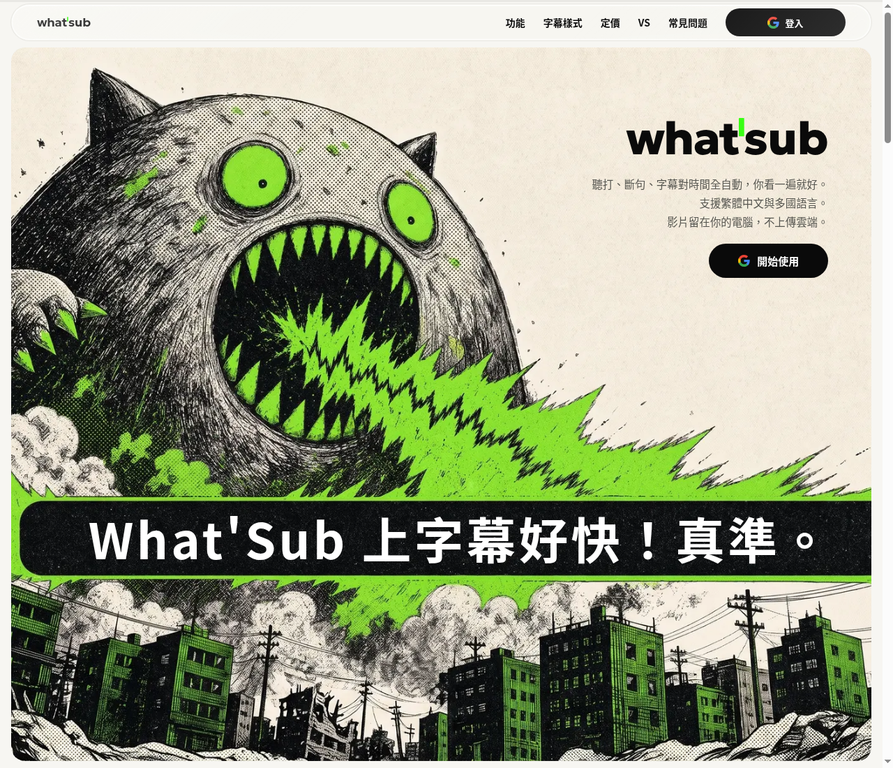 Image: What'Sub official homepage. Source: What'Sub Official Website.
Extremely Short Workflow
What'Sub's biggest strength is "ready to use anytime". Drag your file (supports common video/audio formats, single file up to 8 hours) into the web page, wait for transcription and segmentation, then edit directly in the browser.
This is especially friendly for short videos or urgent projects. The system remembers proper nouns you've edited so it won't misspell the same brand name next time. However, to be frank, if the background noise is too messy or multiple people overlap, you still need to review it manually before publishing.
Styling Done Directly in the Web Page
Many tools only give you an SRT file, leaving typography to be handled back in editing software. What'Sub packages fonts, sizes, shadows, and "social safe zone frames" directly into the web workflow. It includes over 1,900 open-license fonts and lets you upload custom fonts (loaded locally in the browser). If you make TikToks or Shorts often, the safe zone frame helps prevent platform buttons from obscuring text—a very practical feature.
Export Options
Once finished, you can decide where your subtitles go:
- SRT / VTT: Standard formats for YouTube or web uploads.
- Transcript: Pure text records without timestamps.
- FCPXML: Great for Apple users; imports directly into Final Cut Pro while preserving preset font styles.
- MP4 / Transparent MOV: Burn subtitles directly into video or export a transparent background subtitle track to overlay in other software.
Note that the official website currently marks "Translation & Bilingual Subtitles" as Coming Soon. If you strongly require multi-language features right now, this tool does not support it yet.
Scribis: The Heavy-Duty Media Workstation
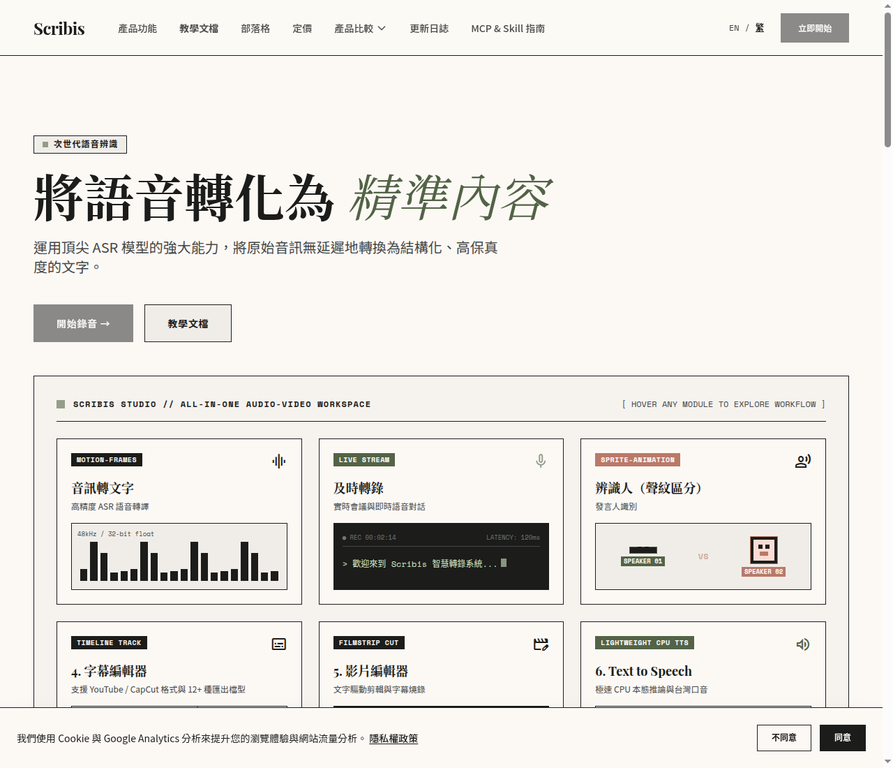 Image: Scribis official homepage. Source: Scribis Official Website.
Transcription is Just Step One
Scribis doesn't want to be just a "subtitle machine." It treats audio as raw material to be repeatedly refined.
After recording an interview, you can separate who said what (speaker diarization), align existing script text with audio (transcript alignment), or translate subtitles into Japanese and dub them with AI. These operations frequently touch raw audio files and timelines, which is much stabler to handle in a desktop app than switching across web tabs.
Hybrid of Local Models and APIs
You can use built-in OpenAI Whisper, NVIDIA Parakeet, or SenseVoice models, or even run local GGUF models. If you don't want to consume your own computer's compute power, you can also connect your own API keys (Gemini, Groq, ElevenLabs, etc.).
The point isn't that "local always beats cloud," but that you have choices. Confidential files can run offline locally, while speed-critical or specialized tasks can plug into APIs.
Rapid Feature Deployments
The changelog for this software reads like an arms race. Recent additions include:
- VAD Trimming: Automatically trims excessively long subtitle timelines caused by background noise.
- Waveform Upgrades: Split audio directly on the waveform with distinct colors for different speakers.
- ProRes 4444 Export: Supports high-quality lossless subtitles with transparent background.
- Video OCR: Frame select video regions to extract hardburned burned-in subtitles.
- YouTube Assistant: Paste a link to view multi-language subtitles and summarize content into overview, highlights, and takeaways.
With many features comes a steeper learning curve. You need to spend time understanding model settings and workflows; it's not a single-click fool-proof software.
Privacy Concerns: Two Different Definitions of "Security"
When dealing with unreleased videos, leakage is a major concern. The two tools approach this completely differently:
What'Sub: Videos stay on your local computer at all times and are never uploaded. It extracts audio only, encrypting it and sending it to the cloud for recognition. The official site states clearly that this audio copy is automatically deleted after 14 days.
Scribis: If you switch to pure local models, it offers physical air-gapped security—data doesn't even leave your home router. However, if you plug OpenAI or Gemini API keys into the app, privacy policies follow those major cloud providers.
Hardware Thresholds and Wallet Depth
What'Sub's advantage is "selects network speed, not hardware." Because heavy lifting is done on cloud servers, a 5-year-old lightweight laptop running Chrome or Edge works smoothly. Pricing: Plans are billed by monthly/annual video quota, plus optional single top-ups (e.g. 120 TWD for 30 minutes).
Scribis's trade-off is "demands performance." The Mac version supports Apple Silicon (M-series) chips only. For Windows users running translation or advanced features, an NVIDIA GPU with 8GB+ VRAM is recommended; for pure transcription, the CPU can manage. Pricing is relatively generous:
- Free Version: Up to 30 minutes per upload, allowing trial of select models.
- Local Pro: US$2.99/mo, or US$49.99 one-time lifetime purchase. Unlimited local model runs, unlocking full features. (Honestly, if your hardware can run it, $49.99 for lifetime buy-out is almost a no-brainer.)
Scenario Guide
| Your Main Scenario | Which to Choose | Why |
|---|---|---|
| Quickly add subtitles to a short video or interview | What'Sub | Extremely short workflow, no download or configuration needed. |
| Creating vertical short videos (TikTok / Reels) | What'Sub | Auto-snapping social safe zones avoid UI overlap, with rich dynamic styles. |
| Multi-speaker interview needing voice recognition | What'Sub / Scribis | Scribis has dedicated speaker management and multi-color waveforms. |
| Multi-language translation, AI dubbing & OCR | Scribis | All-in-one integration for translation engines, TTS, and video OCR. |
| Strict NDA / zero cloud upload requirement | Scribis | Supports offline local models (Whisper, etc.). |
| Using a standard lightweight office laptop | What'Sub | Cloud processing doesn't consume local hardware compute. |
Finally, Ask Yourself These Three Questions
If you're hesitating between the two, consider these three conditions:
- Do you need to publish immediately, or extract and refine content? If you're making subtitles just to get them onto the video—fixing fonts, aligning safe zones, and exporting delivery files—go with What'Sub. If you want to translate, dub, or turn the transcript into key takeaways, Scribis is your main stage.
- How strict is your confidentiality requirement? If you signed a strict NDA where no data can hit the cloud, Scribis local models are your only safe bet. For standard client work or personal vlogs, What'Sub's cloud recognition pipeline is secure enough.
- Is your computer powerful enough? This is the most realistic bottleneck. Without an M-series chip or dedicated GPU, don't struggle with Scribis advanced features—smoothly open your browser and use What'Sub.
There is no absolute winner; rather than counting feature numbers, choose whichever tool saves you time and effort.