How to Convert YouTube Videos to Text with Scribis: Local AI Transcription, Subtitle Extraction, and SRT Export
Convert YouTube videos to text directly from URLs. Learn how to configure yt-dlp, extract existing subtitles or use local ASR models, and export SRT files in Scribis.
If you frequently use YouTube for study, research, or online learning, you have likely encountered a common challenge:
The video contains invaluable information, but what you actually need is structured text.
You might want to search for a specific quote, summarize key points, generate transcripts, translate captions, or feed content into AI for deeper analysis. Scrubbing back and forth through a video timeline is time-consuming and inefficient.
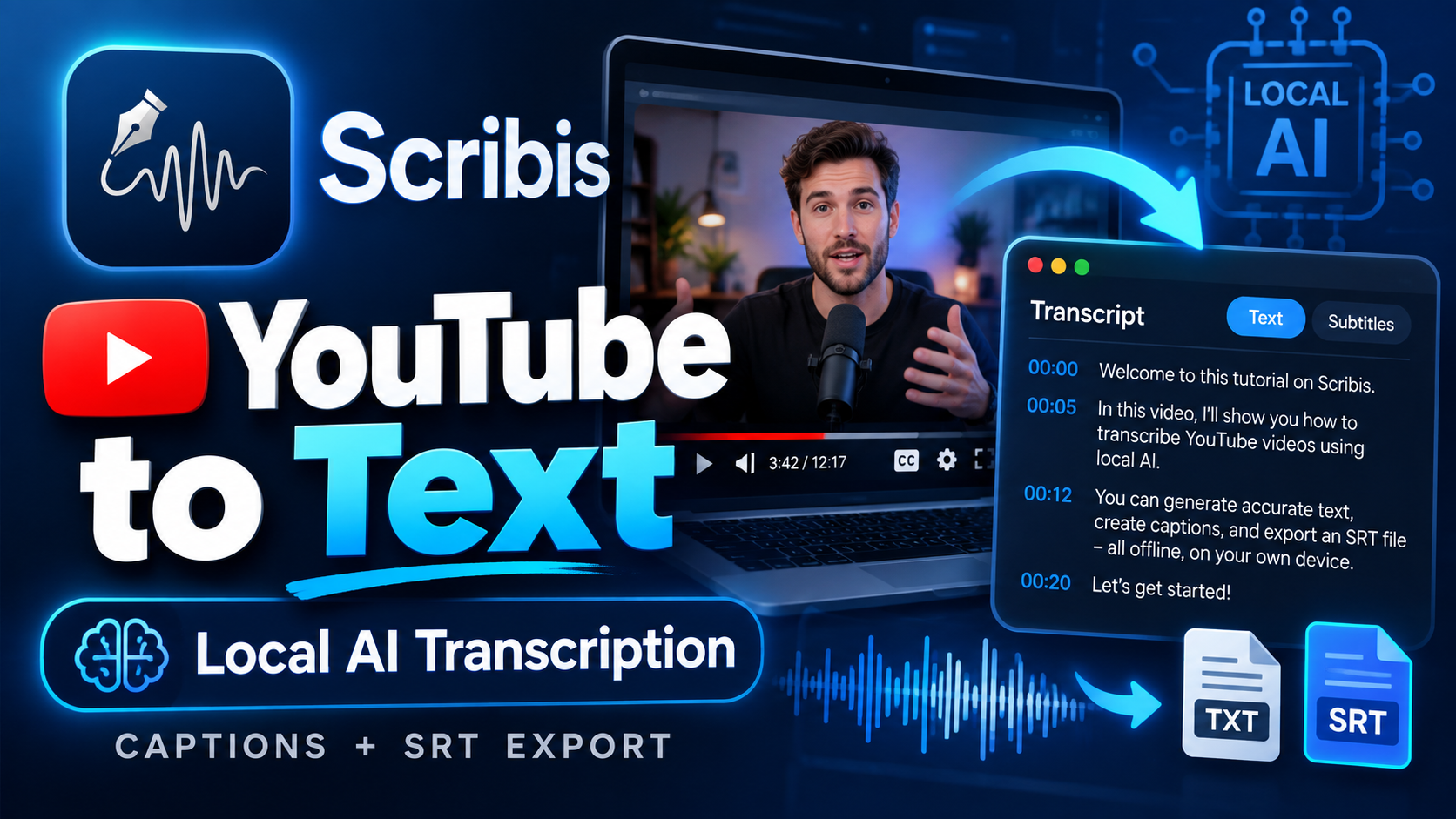
Scribis provides a streamlined URL Transcription workflow for online videos. Simply paste a YouTube or supported video URL to extract existing subtitles or process audio through local AI speech recognition models. Once transcribed, your video, audio waveform, transcript, subtitles, AI summaries, and Q&A reside within a unified workspace.
What You'll Learn
In this tutorial, you will learn how to:
- Configure and enable the external
yt-dlptool in Scribis - Set up
FFmpegand optionalcookies.txtfor restricted content - Paste YouTube URLs and select media quality or audio-only extraction
- Prioritize existing subtitles or run local ASR models (such as Whisper or Parakeet)
- Sync video playback, timestamped transcripts, and audio waveforms in Study Studio
- Use AI Chat for Q&A, summarization, and note generation
- Edit captions and export industry-standard SRT subtitle files
Essential Prerequisites
The Online Video feature in Scribis is available in the Standalone Desktop Edition (macOS DMG and Windows builds).
The Mac App Store edition cannot invoke external CLI tools like yt-dlp due to App Sandbox restrictions. For full URL Transcription support, please install the standalone desktop edition.
Note: This feature is intended for personal study, research, backup, and media content you have authorization to access. Please ensure compliance with platform terms of service and applicable copyright laws.
Step-by-Step Guide
Step 1: Configure yt-dlp
Scribis utilizes yt-dlp as an external media extraction tool. This decoupled architecture ensures that when online video platform formats change, you only need to update yt-dlp rather than wait for a full Scribis application release.
- Open Scribis and navigate to Settings → System & Tools → Online Video.
- Click the provided link to visit the official yt-dlp GitHub Releases page.
- Download the binary matching your operating system:
- Apple Silicon Mac (M1/M2/M3/M4/M5): Download the ARM64 executable.
- Windows: Download
yt-dlp.exe.
- No installation installer is required. Return to Scribis, click Select File, and select the downloaded
yt-dlpbinary.
Step 2: Enable Online Video Functionality
Once the binary path is assigned:
- Toggle Enable online video functionality on.
- We recommend enabling Auto Update Video Package. Scribis checks for upstream updates approximately every 12 hours, ensuring extraction scripts remain compatible with online video platforms.
Step 3: Configure cookies.txt for Restricted Content (Optional)
For age-restricted videos, member-only content, or private media requiring authentication:
- In Scribis, locate the Cookie File Path setting.
- Export a standard
cookies.txtfile from your web browser following yt-dlp documentation. - Select the file in Scribis. Keep your cookie file secure as it represents active session credentials.
Step 4: Configure FFmpeg
In addition to yt-dlp, FFmpeg handles stream merging, audio extraction, and media container conversions:
- Navigate to Settings → FFmpeg.
- Scribis Standalone automatically detects system FFmpeg installations, or you can specify a custom binary path.
Step 5: Paste a YouTube Video URL
- Select URL Transcription from the main sidebar in Scribis.
- Paste a URL for a YouTube tutorial, lecture, podcast episode, or conference talk.
- Scribis analyzes the video link and detects available formats.
Step 6: Select Media Format and Quality Options
If Select format & quality before download is enabled, Scribis displays available video resolutions, bitrates, and codecs (e.g., AVC1, AV01).
- Audio Extraction Only: Enable Audio extraction only to download only the audio stream. This dramatically reduces download time, bandwidth, and disk usage—ideal for multi-hour 4K videos.
- Use Existing Subtitles: Enable Prioritize using existing video subtitles to fetch closed captions or creator-uploaded subtitles directly without re-running speech recognition.
Step 7: Select a Local Speech Recognition Model
If no subtitles exist or higher transcription accuracy is required, choose an installed local ASR model (e.g., Whisper large-v2, Parakeet) and click Start Transcription.
All speech recognition runs locally on your computer, keeping your data private and offline.
Step 8: Edit and Analyze in Study Studio
Upon completion, the video opens inside the Study Studio workspace:
- Timestamp Seeking: Click any timestamped transcript segment to seek video playback instantly.
- Edit Transcripts & Subtitles: Refine technical terminology, proper nouns, or punctuation directly.
- AI Synthesis & Q&A: Summarize the video, generate structured notes, or ask AI targeted questions about the content.
- Export SRT Subtitles: Export finalized transcripts as SRT files for video editors or subtitle uploads.
Complete End-to-End Workflow
Settings → System & Tools → Online Video (yt-dlp)
                        ↓
            URL Transcription
                        ↓
    Paste YouTube URL & Select Mode
    (Audio Extraction / Existing Subtitles / Local ASR)
                        ↓
            Start Transcription
                        ↓
            Study Studio Workspace
            (Transcript + Vision + AI Chat + Notes)
                        ↓
            Export SRT Subtitles
Key Concepts & FAQ
Why doesn't Scribis bundle yt-dlp directly inside the App?
Online video platforms frequently update their web structure and streaming protocols. Bundling extraction tools inside the main application binary would require publishing full app updates for every upstream platform patch. Maintaining an external tool architecture (Scribis → External yt-dlp → Video Platform) allows rapid background updates without app redeployment.
When should I use "Audio Extraction Only" vs. "Existing Subtitles"?
- Audio Extraction Only: Best for long lectures, podcasts, or talks where high-definition video is unnecessary. Saves up to 90% of download time and disk space.
- Prioritize Existing Subtitles: Best when accurate CC or author subtitles are already available, providing instant text transcripts in seconds.
Recommended Use Cases
- YouTube Learning & Online Courses: Convert educational videos into searchable transcripts and study notes.
- Language Learning: Practice shadowing and listening comprehension using synchronized transcripts.
- Content Creation & Research: Process interviews, podcasts, and talks into editable text and SRT subtitle files.
Summary
Scribis URL Transcription streamlines the traditional "download video → extract audio → run Whisper → copy to LLM → export subtitles" chain into a single desktop application. Powered by yt-dlp and local AI models, it transforms online video into an interactive, searchable knowledge base.